Ghani Governance · Microsoft Purview Information Protection
Designing a sensitivity label taxonomy
Published
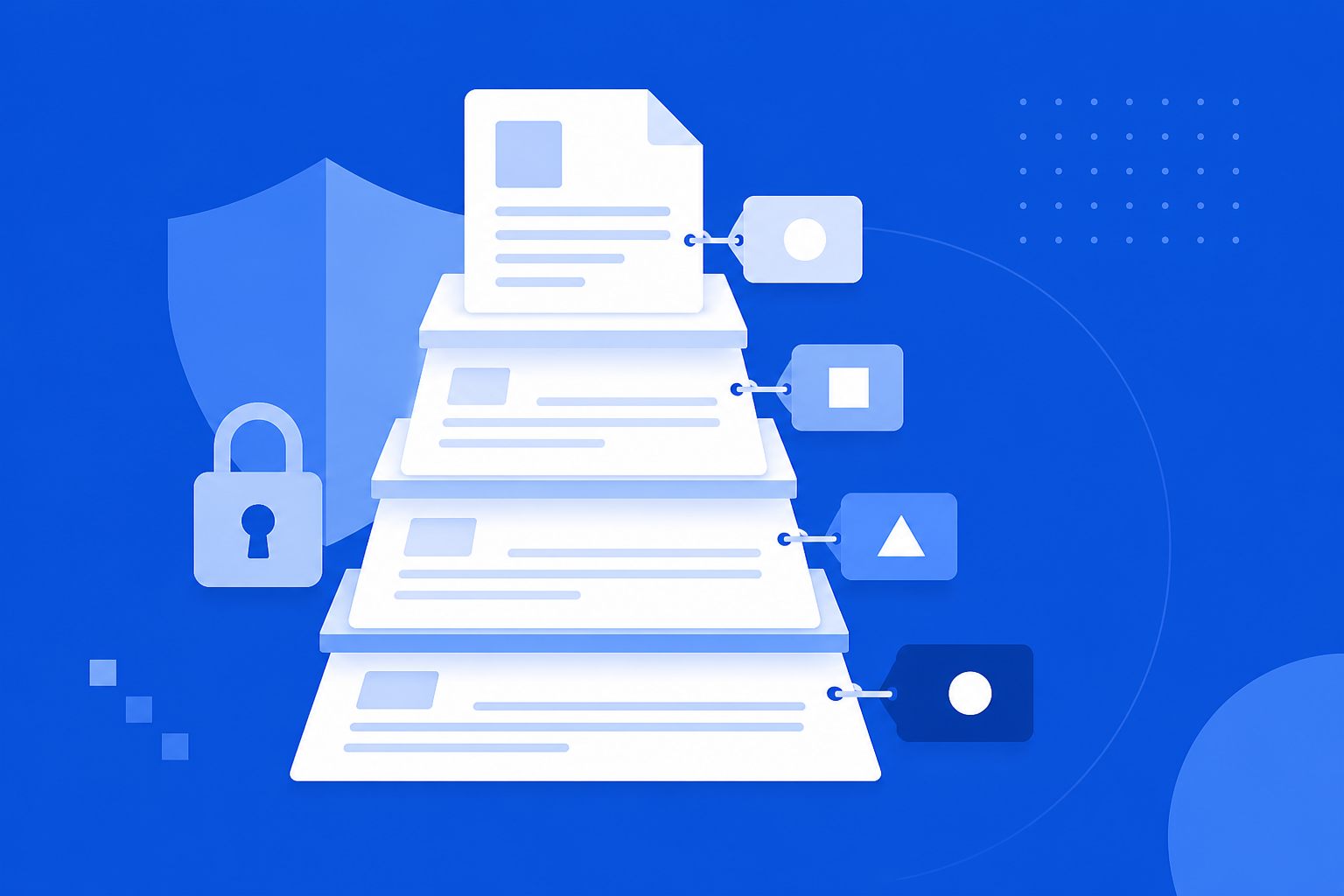
A sensitivity label taxonomy is the short, ordered list of labels people apply to documents, emails, meetings and sites in Microsoft Purview. Microsoft suggests starting from Personal, Public, General, Confidential and Highly Confidential. It warns that labels work noticeably less well beyond five main labels, or five sublabels under one label. If you are moving from Azure Information Protection, rebuild on the labelling built into Office, because the AIP add-in is retired.
What should a sensitivity label taxonomy include?
It needs a handful of labels, named in words your staff already use, in a deliberate order, each with a tooltip that gives examples. Microsoft’s guidance is to name labels according to your organisation’s classification taxonomy, using common terms that make sense to users. Each label should have a tooltip with specific examples, but not one so long that people stop reading it (Microsoft Learn: get started with sensitivity labels).
If you have no taxonomy yet, Microsoft’s default labels are a reasonable starting point. The table below quotes the descriptions Microsoft uses (Microsoft Learn: default labels and policies):
| Label | Microsoft’s description for users |
|---|---|
| Personal | Non-business data, for personal use only. |
| Public | Business data that is specifically prepared and approved for public consumption. |
| General | Business data that is not intended for public consumption, but can be shared with external partners as required. |
| Confidential | Sensitive business data that could cause damage to the business if shared with unauthorised people, for example contracts, security reports and forecast summaries. |
| Highly Confidential | Very sensitive business data that would cause damage if shared with unauthorised people, for example employee and customer information, source code and pre-announced financial reports. |
The defaults also show how sublabels work. Confidential has sublabels such as “Anyone (unrestricted)”, “All Employees” and “Trusted People”. Users pick the sensitivity level first, then the sublabel, which decides who can open the content. Microsoft calls this a two-tier hierarchy. It can be built with parent labels or with the newer label groups (Microsoft Learn: learn about sensitivity labels).
How many sensitivity labels is too many?
More than five main labels, or more than five sublabels under any one label, is where Microsoft says effectiveness noticeably drops in real deployments. It adds that some apps can’t display every label when too many are published to the same user (Microsoft Learn: learn about sensitivity labels).
In practice, most of the work is removing labels. Labels named after departments (“HR Confidential”, “Finance Confidential”) multiply quickly and overlap. A clearer pattern is one level of sensitivity, with sublabels only where the protection is genuinely different: who can open the file, whether it is encrypted, whether it carries a marking.
Why does the order of labels matter?
The order sets each label’s priority. Microsoft says to put the least restrictive label (such as Personal or Public) at the top of the list and the most restrictive (such as Highly Confidential) at the bottom. An item can carry only one sensitivity label. The order matters in three places:
- Downgrade justification. If you require users to justify lowering a label on files, emails or meetings, “lower” means higher up the list. This doesn’t apply to sublabels that share their parent’s priority, or to container labels.
- Auto-labelling. When several labels match, Purview picks the last label in the order and then, if applicable, the last sublabel.
- Reporting. A consistent order makes activity and DLP reporting readable, because “higher” always means “more sensitive”.
The first two are from Microsoft Learn: label priority. The third is our design practice.
Which scopes should each label have?
A label’s scope decides which settings you can configure for it, and where users can see it. A label can apply to files and other data assets, emails, meetings, or containers such as Teams, Microsoft 365 groups and SharePoint sites (Microsoft Learn: label scopes).
Container labels are off by default. You switch them on with PowerShell (the EnableMIPLabels setting). They control site and group settings, not the classification of each file inside. They also show the label name and description only in the original language (Microsoft Learn: labels for Teams, groups and sites). Decide early whether the same names will be used for sites and for files. Users find two different taxonomies confusing.
Should a UK organisation copy the government classification scheme?
Usually not. Map to it only if you handle government information. The Cabinet Office’s Government Security Classifications policy has three levels: OFFICIAL, SECRET and TOP SECRET. Suppliers that receive government information need a clear mapping from their own labels to those levels. A commercial firm that adopts the government names for its own documents tends to confuse staff and customers. Write the mapping into your data classification policy, and see Policy to Purview design.
How do you move from Azure Information Protection to Purview labels?
You move to the labelling that is built into Office apps, and replace the AIP client where you still need labelling outside Office. Microsoft states that the Windows Office add-in from the Azure Information Protection unified labeling client is retired and no longer supported, replaced by labels built into Office apps that support labelling (Microsoft Learn: sensitivity labels in Office apps). Office needs a subscription version, such as Microsoft 365 Apps for enterprise. The AIP unified labeling client itself is replaced by the Microsoft Purview Information Protection client. That client covers File Explorer, PowerShell, the on-premises scanner and a viewer for encrypted files (Microsoft Learn). Each release is supported for one year (Microsoft Learn: client release history).
A sensible migration order:
- List the existing labels, which ones are actually applied, and which apply encryption. Encrypted content still needs the right people to have access after the change.
- Decide for each label whether to keep, merge, rename or retire it, against the five-and-five guidance above.
- Remove the retired AIP add-in and its Office policy setting, so users get built-in labelling.
- Turn on sensitivity labels for Office files in SharePoint and OneDrive, which Microsoft’s container-label and co-authoring guidance assumes is already in place.
- Decide on co-authoring for encrypted files before a wide rollout. Without it, desktop users must check out encrypted files. Once it is on, it can’t be turned off in the Purview portal, and switching it off later can lose labelling information. Microsoft also says to allow 24 hours for the setting to replicate (Microsoft Learn: co-authoring for encrypted files).
- Publish to a pilot group, check whether people understand the names, rename if they don’t, then widen.
How this fits a labelling project
The taxonomy is the first design decision in a sensitivity labels and information protection rollout. Everything later depends on it: protection settings, auto-labelling and DLP rules that use labels. For worked DLP examples that sit on top of a taxonomy, see Microsoft Purview DLP policy examples for UK data.
Related pages
- Sensitivity labels and information protection: our labelling service and indicative ranges
- Policy to Purview design: turning a data classification policy into labels
- Microsoft Purview DLP policy examples for UK data: DLP rules that build on labels
- Microsoft 365 Copilot data security: how labels limit what Copilot can surface
- Data lifecycle and records management: retention labels, which are a separate scheme
Sources: Microsoft Learn and GOV.UK pages linked above, checked on 19 October 2026. Product behaviour changes, so check Microsoft’s current documentation before you configure anything.
Book a discovery workshop
A scoping conversation about what you need to protect, what is already configured, and what must not break.